How to Choose the Right Post-Processor for Your Mekanika CNC Machine

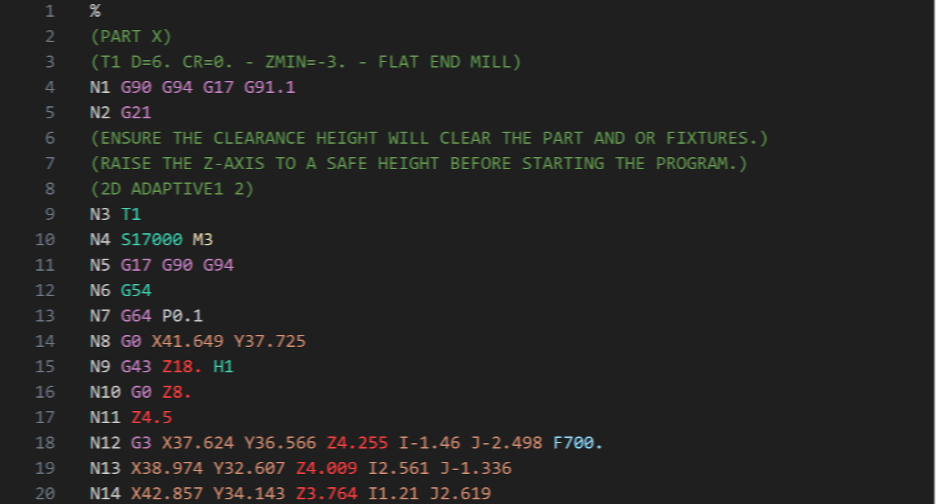
In order to create a G-code from your CAM software and make it compatible with your Mekanika CNC machine, you need to choose the right post-processor. 

This article will guide you through the process on Autodesk Fusion and Vectric VCarve or Aspire, whether you work on Mac or Windows.

If you are using another CAM software, please contact our support team. We will gladly help you find a matching post-processor.

Autodesk Fusion

Open Fusion and go directly to the “Manufacture” workspace.

Open Fusion Manufacture Workspace and Choose the Post Processor for Mekanika

Open the “Post Process” menu by clicking on Open Post Processor Menu of Fusion 2   Choose the Post Processor for Mekanika 

Post-processing Merge window to export g-code and choose a post-processor

In the “Post” section, click on   Open the Post Processor Selection in Fusion 360   Choose the Post Processor for Mekanika

This will open the “Post Library”.

Autodesk Fusion Postprocessor Library window

Type “Mekanika” in the search field and select the only item found.

Window for selecting the mekanika post-processor in the fusion library

Finish by clicking on “Ok” and you're done!

From now on, Fusion will use this post-processor by default. 

You can always check if it is correct when posting your setups by verifying this field. 

Control the post processor selected in the G-code

Vectric VCarve / Aspire

First, download Mekanika's Post-Processor for Vectric softwares from our Support Website. And save it somewhere on your computer.

In the software, open the toolpath tab and click on "save toolpath".

Toolpath tab window and click Save toolpath

Click on the "Post-Processor" field.   

Save Toolpath Menu in Vcarve Vectric   Choose the Post Processor for Mekanika

Select "Add Post-Processors".

In the "Associated Post-Processors" window, click on the + icon.

Vcarve Configuration of a Machine and Post Processor   Choose the Post Processor for Mekanika

At the bottom of the window, you will find a folder icon.

By hovering your mouse over it, you will see "Install Post-Processor to custom Post-Processor directory". Click on it.

Navigate your computer to select the downloaded Post-Processor (link above) and click "open".

Choose the Post Processor for Mekanika

Back to the “Post-Processor Management” window.

Choose "Mekanika(mm)(*.ngc)" and then click on Select to confirm.

Select a Post Processor in Vcarve   Choose the Post Processor for Mekanika

It should now be your default Post-Processor in your software.


Sobre Mekanika

Mekanika es una empresa belga con sede en Bruselas cuya ambición es hacer que la producción local sea más accesible gracias a un enfoque 100% de código abierto.

Diseñamos y producimos máquinas de alta calidad para fresado CNC y serigrafía, reconocidas por su fiabilidad y facilidad de uso. Nuestras herramientas se entregan como kits y están completamente documentadas, lo que permite adaptarlas fácilmente a necesidades específicas.

Visita nuestra tienda para saber más, o consulta nuestros recursos y tutoriales en línea para seguir aprendiendo.

Artículos relacionados

Resuming an Interrupted Milling Progam on PlanetCNC

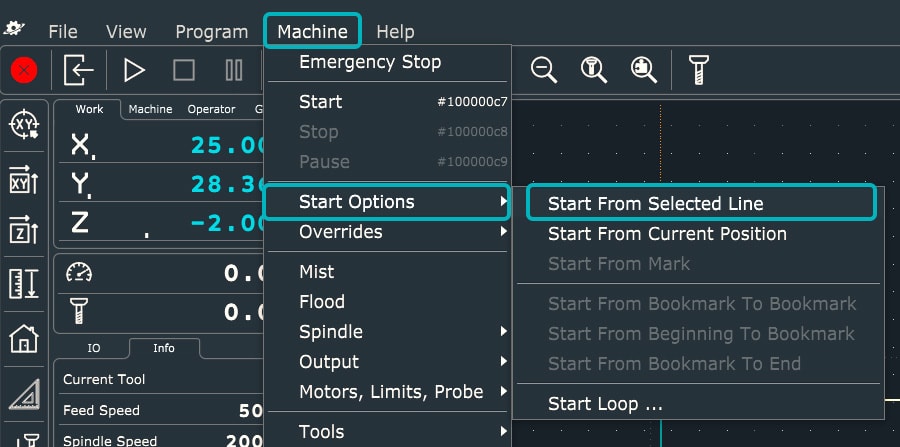
Planet CNC offers the option of starting a G-code from a specific line instead of from the beginning. This can be useful for resuming a job that was stopped for various reasons, such as a program/computer crash, a power outage or an emergency stop.

Quentin Liard

Quentin Liard

Community Manager

 <img src="image.jpg" alt="">
Understanding & Optimizing Your Vacuum Table

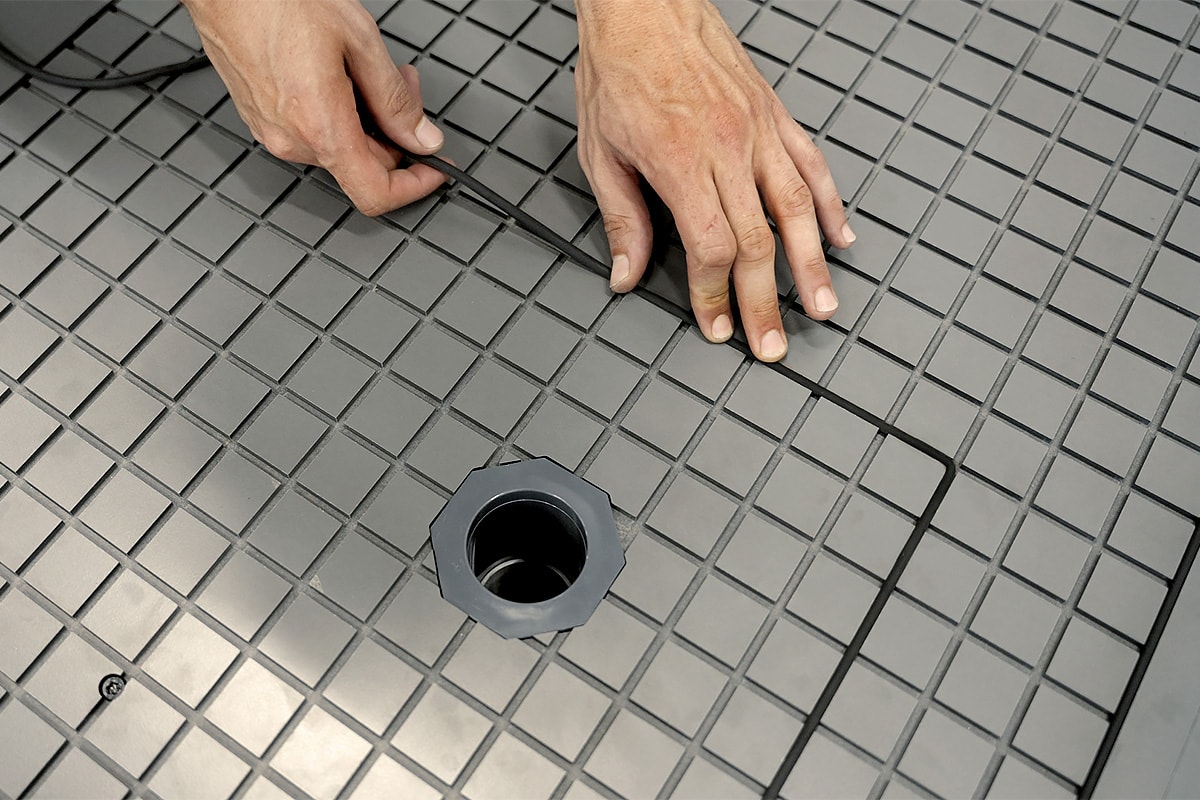
Find out how to maximize the performance of your vacuum table by learning practical tips on cutting strategies, spoilerboard maintenance and many more.

Maxime Gravet

Maxime Gravet

Head of Engineering