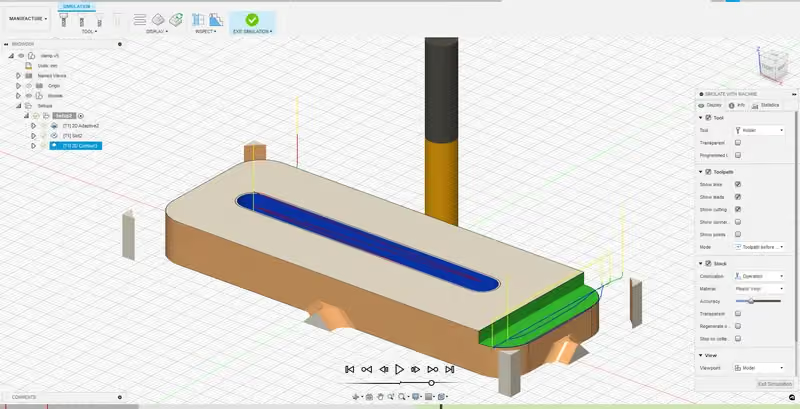
Module 1: 2D Modeling and Milling
Learn the basics of Autodesk Fusion: the interface, the design of a parametric clamp and the preparation of its CNC machining.

Xavier Klein
CNC Educator
In your projects, you will often need to machine the same part several times or repeat the same operation, for example to produce an object in series. You can duplicate the toolpaths or the objects to be made, but it is tedious: you have to select them one by one in the Geometry tab, and every part you add or remove has to be updated by hand.
Fusion therefore lets you create toolpath patterns (Pattern), so you can duplicate them at will without reselecting the geometry. To illustrate this tool, we will create an IKEA-compatible pegboard.
If you are only looking for information about the Pattern tool, you can skip straight to the chapter Manufacturing: Last Operation, Pattern.
Prerequisites: knowing how to prepare simple machining operations in Fusion (see Module 1).
Here is the sketch we are going to draw: the outline of the pegboard and a single slot. The other slots will be obtained by duplicating the toolpath.

Start by defining the parameters. The size of the pegboard will depend on the number of slots you want.
Open Modify > Change Parameters.
First create two parameters for the number of slots in X and Y. These parameters have no unit: choose No Units in the Unit field.
Then create a parameter for the thickness of the part:
The distance between the slots:
Then the length and width of the slots:
The number of slots determines the width and height of the panel. A formula ensures that the dimensions stay correct, whatever the number of slots.

The parameters are now defined. Here is the summary:
| Name | Unit | Expression | Value |
| nbrSlotX | No Units | 17 | 17 |
| nbrSlotY | No Units | 25 | 25 |
| thickness | mm | 5 mm | 5 |
| slotLength | mm | 15 mm | 15 |
| slotWidth | mm | 5 mm | 5 |
| distanceBTSlots | mm | 20 mm | 20 |
| width | mm | (nbrSlotX * distanceBTSlots) + distanceBTSlots | 360 |
| height | mm | (nbrSlotY * distanceBTSlots) + distanceBTSlots | 520 |

Click Create > Create Sketch and select the X/Y plane. In the sketch, select Create > Rectangle > Center Rectangle. Place the center point at the origin of the document and enter the width and height dimensions. Press Enter to confirm the drawing.

Then select Create > Slot > Overall Slot.
First enter the slotLength value, keeping the orientation at 90°:

Confirm with Enter, then, moving the mouse slightly, enter the slotWidth value:

Confirm with Enter:

Now place a point at the center of the construction line created with the slot (slot). This point will be the reference for the sketch dimensions. Select Create > Point:

Place the point at the middle of the dotted construction line, in the center of the slot. Check that the Midpoint constraint appears in blue.

Now fix the position of the slot relative to two edges of the rectangle. Select Create > Sketch Dimension:

Two dimensions are needed: the distance between the center point of the slot and the bottom side of the rectangle, then the distance between the center of the slot and the left side of the rectangle.
With the Sketch Dimension tool active, click the center point, then the bottom side of the rectangle:

Place the dimension wherever you like and enter the distanceBTSlots parameter.

Do the same between the construction line of the slot and the left side of the rectangle, again entering distanceBTSlots:

The screenshots show fillets at the four corners of the rectangle. Use Modify > Fillet and create fillets with an 8 mm radius by clicking the two lines of each corner.

The drawing is finished: click Finish Sketch:

There is no need to draw the other slots: it is the toolpath that will be duplicated. You can move to the Manufacture workspace.
Start by creating the Setup (Setup > New Setup).
We have only drawn a sketch, with no solid body, so no model is selected in the Setup. This is normal: the toolpaths are based directly on the sketch. If Fusion displays the “No model selected” warning when you confirm, click Yes.
Go straight to the Stock tab in the left panel and enter these values:
The settings should match the image.

Go back to the Setup tab. In Box point, select the bottom left point of the stock, as shown in the image.

Click OK to confirm the Setup.
First create the toolpath for the slot: 2D > 2D Contour. If you have a 5 mm diameter end mill, you can also use the 2D > Slot operation.
Here we use a 3 mm diameter end mill, the A303.030.6D from Fraiser. It is a 2-flute end mill with downward chip evacuation (Downcut), suited to cutting thin panels like this one. Here are the speeds:

In the Geometry tab, select the slot contour. Check that the arrow is inside the outline.

In the Passes tab, check Multiple Depths and enter the depth of cut in Maximum Roughing Stepdown. With a good-quality end mill on a Mekanika Pro, we can afford 3 mm passes. If you are unsure, use half the end mill diameter, here 1.5 mm.

Finally, in the Linking tab, check Ramp and enter these values if you have not saved them as defaults (as a reminder: click the three small dots to the right of the field, then Save as User Default).
Ramping Angle: 35 deg
Maximum Ramp Stepdown: 300 mm
Ramp Clearance Height: 2.5 mm

You can then confirm the toolpath.
Why two separate toolpaths? In theory, everything could be done in a single operation. But the goal is to duplicate the slot toolpath, not the one that cuts out the panel, which is only done once, at the end.
Click 2D > 2D Contour; the end mill should already be selected. In the Geometry tab, click the outer contour:

Warning: in the example above, the arrow is inside the outline, which means the end mill will machine on the inside. We want to machine on the outside: simply click the arrow to flip it.

Do not forget the Tabs:

For the rest, use the same settings as the previous operation in the Passes and Linking tabs.
Confirm by clicking OK:

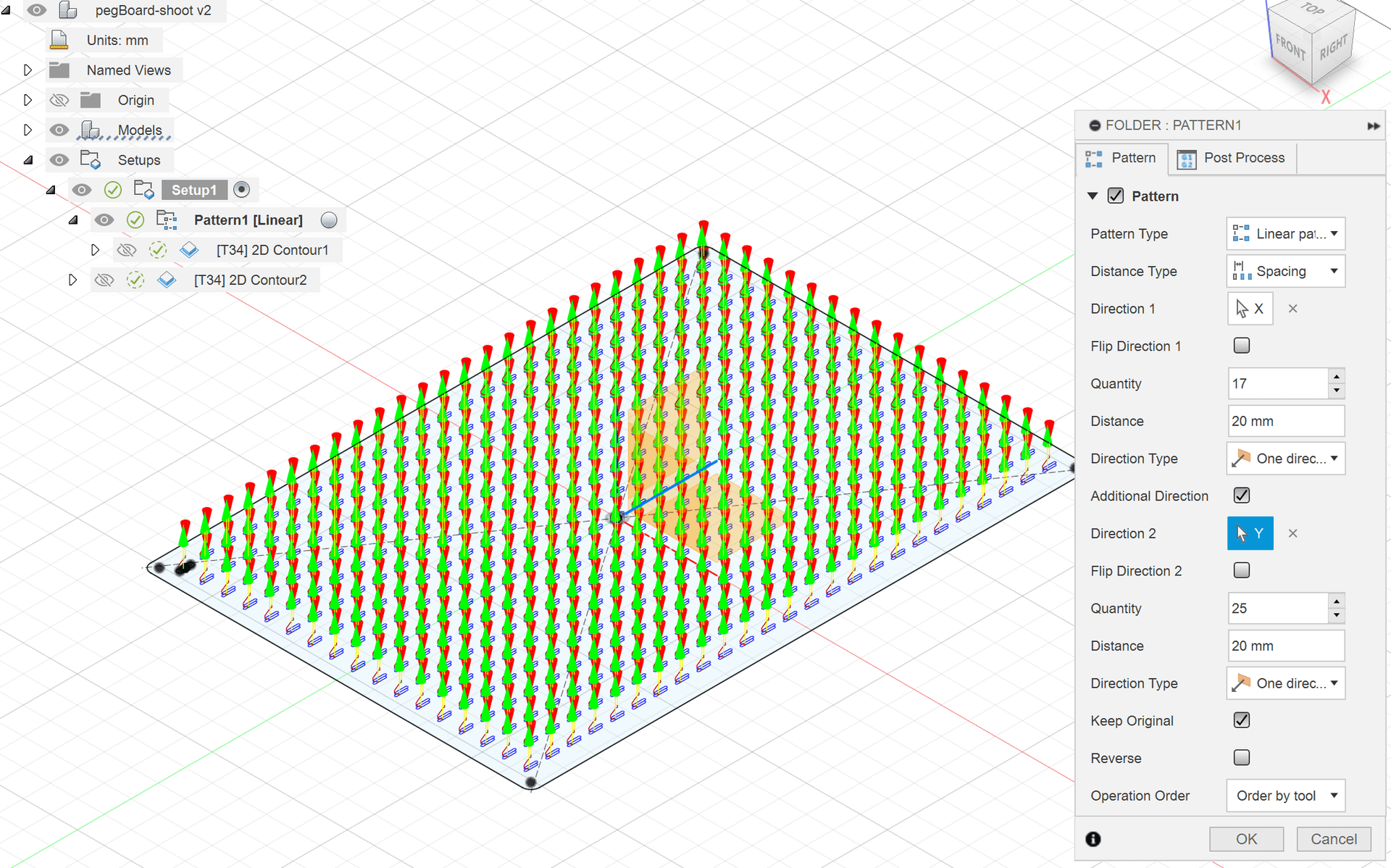
Now create a pattern from the first operation. Right-click the 2D Contour 1 operation, then select Add to New Pattern.

Here are the options in the right-hand panel:

In the Pattern section:
Pattern Type: the type of pattern. Several types exist; leave it on Linear.
Distance Type: how the distance between elements is calculated. Spacing sets the distance between two elements; Extent sets the total length of the pattern, and Fusion then calculates the spacing.
Direction 1: the direction of the pattern, chosen by clicking an axis or an edge in the design.
Flip Direction 1: reverses the direction of the pattern if needed.
Quantity: the number of elements, including the original toolpath.
Distance: the distance between two elements, or the total length, depending on the type selected.
Direction Type: the pattern goes in one direction, or in two symmetrical directions.
Additional Direction: adds a second direction.
Keep Original: keeps or removes the original element.
For our pattern:
Pattern Type: Linear
Distance Type: Spacing
Direction 1: show the axes and planes by enabling the Origin folder in the Browser, then select the X axis:

Flip Direction 1: check that the pattern goes in the right direction and check the option if it does not.

Quantity: enter the nbrSlotX parameter.

Distance: enter the distanceBTSlots parameter.

Add a second direction (Additional Direction):
this time select the Y axis.
Quantity: nbrSlotY
Distance: distanceBTSlots
If all goes well, you get this grid of toolpaths.

All that remains is to select Setup1 and click Post Process to generate the G-code (see Module 1 for details).
There you go! If you change the parameters, in particular the number of slots, the outer contour adapts automatically. You then just need to regenerate the toolpaths: right-click Setup1 and select Generate.
Mekanika is a Belgian company based in Brussels whose ambition is to make local production more accessible thanks to a 100% open-source approach.
We design and produce high quality machines for CNC milling and screen printing, which have been recognized for their reliability and ease of use. Our tools are delivered as kits and fully documented, allowing to easily adapt them to specific needs.
Visit our shop to find out more, or check out our online resources and tutorials to continue learning.
Learn the basics of Autodesk Fusion: the interface, the design of a parametric clamp and the preparation of its CNC machining.
Xavier Klein
CNC Educator
Learn how to design a parametric stool assembled with mortise and tenon and cross lap joints, then prepare its machining in Autodesk Fusion.
Xavier Klein
CNC Educator
Learn how to model a parametric ashtray and prepare its 3D machining in Autodesk Fusion, from roughing to finishing.
Xavier Klein
CNC Educator