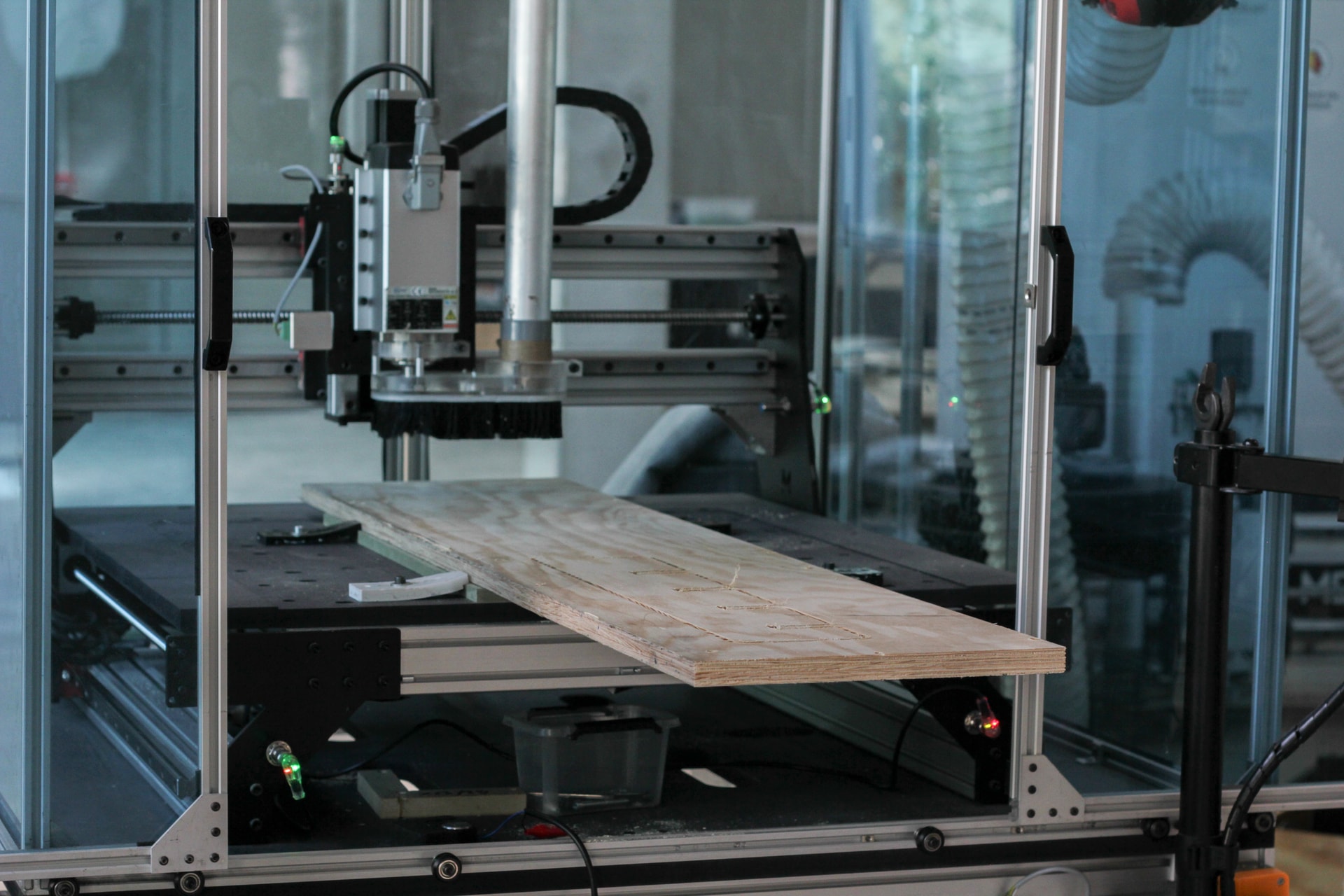
Por razones de espacio, presupuesto o simplemente de uso, has optado por una máquina de tamaño pequeño. Sin embargo, a veces querrás mecanizar piezas más grandes que el área de trabajo de tu máquina, lo que puede ser frustrante. Afortunadamente, existen técnicas para sortear esta limitación física preparando correctamente tu archivo en Autodesk Fusion. Esta técnica se llama «tiling».
Como siempre con Fusion, el procedimiento aquí presentado no es, sin duda, el único posible.
Asumiremos que estamos trabajando en una Mekanika Pro S con un área de trabajo de 600x600mm.
También asumimos que ya sabes cómo preparar operaciones de mecanizado sencillas en Fusion.
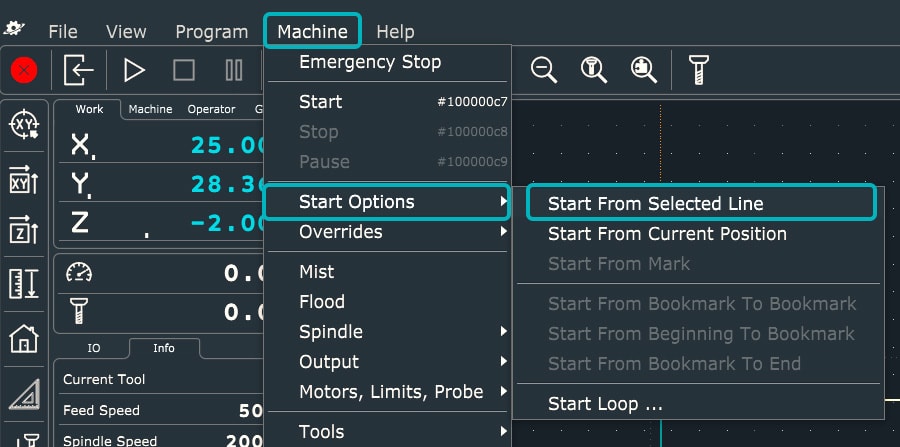
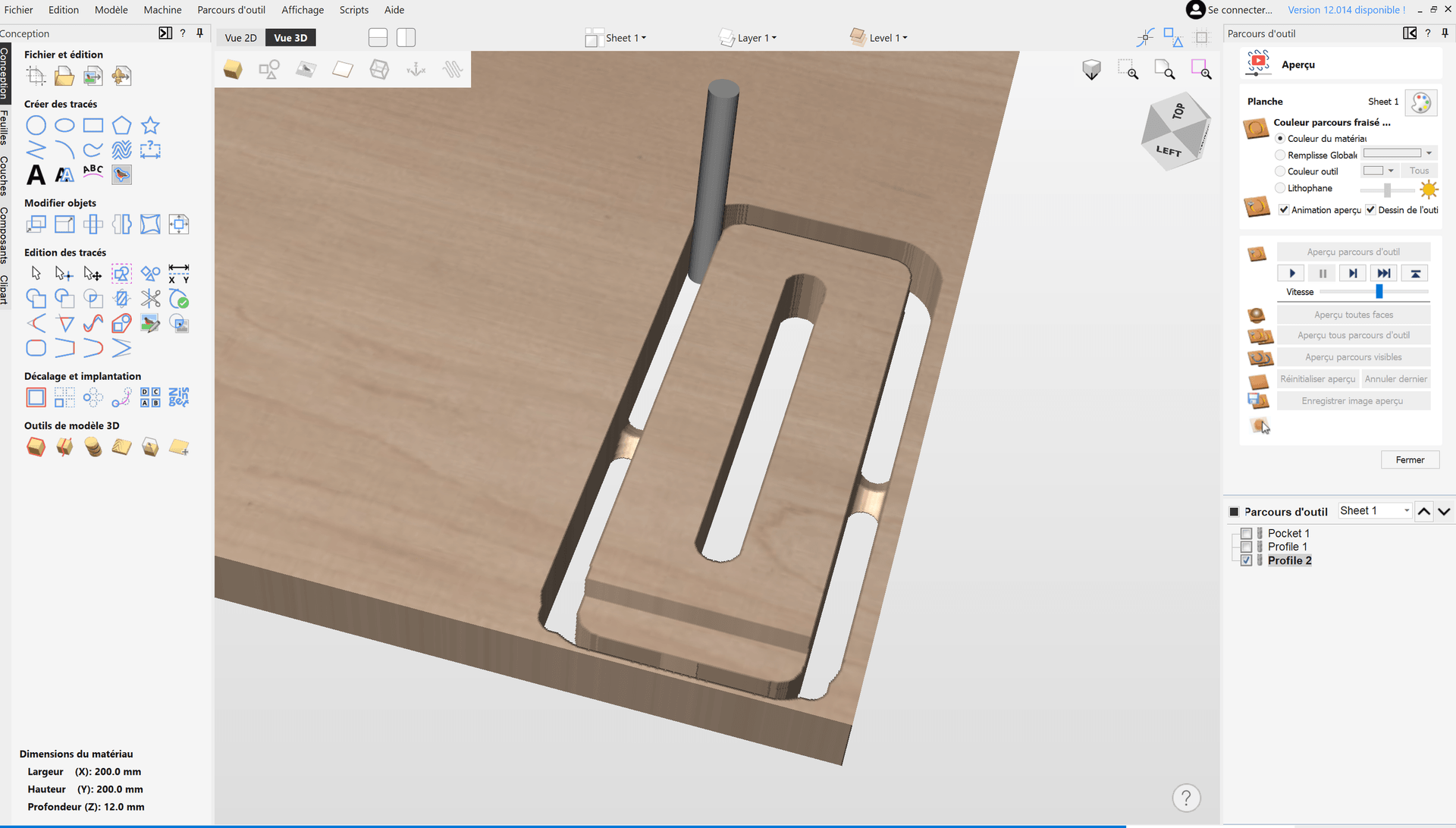
Ten en cuenta que Vectric's VCarve tiene una función de tiling dedicada ubicada en el panel Toolpaths , pero tienes que dibujar los agujeros de posicionamiento tú mismo:

La Pieza y Principios Generales
Aquí, utilizaremos las dimensiones de una estantería ficticia de 1100 mm de largo por 100 mm de ancho. Puedes usar nuestro ejemplo descargando el archivo aquí o utilizando uno de tus propios dibujos.
Por lo tanto, necesitarás un material que pueda albergar tu mecanizado y, posiblemente, un «spoilerboard falso» si no quieres mecanizar directamente en tu spoilerboard.

El principio será dibujar y fresar 2 agujeros para insertar 2 espigas.

Una vez hecho esto, podemos empezar a fresar nuestra pieza utilizando las operaciones habituales. El truco es limitar estas operaciones a nuestro espacio de trabajo. Con cada nueva operación de mecanizado, fresaremos dos agujeros más en el material, que utilizaremos para posicionarlo para la siguiente operación.

Luego movemos el material y lo colocamos con los 2 agujeros:


Y hacemos esto hasta que hayamos mecanizado toda la pieza.

Así que necesitamos dibujar el material, las espigas y los rectángulos para confinar nuestras trayectorias de herramienta.
Preparación para el Mecanizado en el Espacio de Diseño
Dibujo del Material y Agujeros de Posicionamiento
Crea un nuevo boceto y posiciónalo en el plano XY.
Dibuja un rectángulo alrededor de nuestro objeto que represente el material de 1245x285mm. También puedes ajustar estos valores si ya tienes un material adecuado.

En la parte inferior de este rectángulo, dibujaremos dos círculos.
Estos círculos se utilizarán para mecanizar los agujeros de las espigas de posicionamiento. Los que utilizaremos aquí tienen 7 mm de diámetro, así que haremos agujeros de 7.2 mm.

Selecciona la herramienta Crear > Cota de boceto, haz clic en el círculo de la izquierda y luego en la línea horizontal inferior. Coloca la cota e introduce 10 mm para establecer la distancia entre ambos. Haz lo mismo con la línea vertical de la izquierda, y luego con el segundo círculo de la derecha:
 Selecciona Crear > Rectángulo > Rectángulo de 2 puntos. Haz clic en el punto inferior izquierdo del rectángulo grande e introduce las dimensiones 550 mm de alto y 200 mm de ancho. Este rectángulo se utilizará para definir la primera operación de mecanizado, por lo que mide 550 mm de alto, ligeramente más pequeño (para dejar margen) que el límite de 600 mm de la Mekanika Pro S:

Dibuja un nuevo rectángulo con las mismas dimensiones. Coloca el primer punto debajo de la parte superior del primer rectángulo pequeño para que los dos rectángulos se superpongan. Esta superposición permite que las operaciones de mecanizado también se superpongan y asegura que se unan:

Establece esta superposición en 10 mm utilizando Crear > Cotas de boceto, luego haciendo clic en el lado superior del primer rectángulo delimitador y luego en el lado inferior del segundo rectángulo delimitador.

Repite estas dos operaciones hasta el final de la estantería:

Ahora dibujaremos los círculos de posicionamiento para cada límite. Dibuja dos círculos por encima de la superposición de los dos rectángulos y utiliza Crear > Cotas de boceto para posicionar los círculos a 10 mm de cada lado. Para la dimensión vertical, utiliza la línea en la parte inferior de la superposición:

Repite el proceso para las otras dos partes.

Puedes finalizar el boceto.
Extrusión del Material
Oculta el cuerpo que representa la pieza y extruye (Crear > Extruir) el material a la misma altura (aquí 18 mm). Selecciona todo excepto los agujeros.

Muestra el boceto de esta última extrusión, así como el cuerpo de la pieza a cortar.

Puedes cambiar al espacio de trabajo Fabricación .
Configuración de Mecanizado
Primera Configuración de Setup
Como siempre, empieza haciendo clic en Setup > Nuevo Setup. Define el punto de origen de las coordenadas de trabajo en la esquina inferior izquierda de la pieza:

En la pestaña Material, introduce 0 mm para cada ajuste de Offset :

Haz clic en Ok para confirmar el Setup. Si aparece este mensaje, haz clic en Sí.

Primera Operación: Taladrado en el Material y Spoilerboard Falso
Selecciona 2D > Taladrado. Aquí no entraremos en detalles, pero señalaremos los pasos específicos a seguir para crear la operación:

- Elige tu fresa, su diámetro debe ser menor que el agujero que quieres hacer. Aquí, tenemos un agujero de 7.2 mm de diámetro, así que utilizaremos una fresa de 6 mm de diámetro. Es mejor utilizar una fresa de corte ascendente para evacuar las virutas hacia arriba y evitar obstrucciones durante el mecanizado.
- En la pestaña Geometría, selecciona solo los dos primeros agujeros (los más cercanos al punto de origen).

- En la pestaña Alturas, añade un offset de -7.5 mm al valor de Altura Inferior. Esto te permite taladrar más profundo para perforar tanto el material como el spoilerboard falso. Ajusta el valor del offset al grosor de tu spoilerboard falso y a la longitud de tus espigas. Solo asegúrate de que la longitud de la fresa sea suficiente para taladrar hasta el fondo sin riesgo de colisión con el collarín del husillo.

- En la pestaña Pasadas, comprueba que el valor de Ángulo esté configurado en 35 grados (se refiere al ángulo de rampa).

Puedes hacer clic en OK para confirmar la operación.
Taladrado de los Siguientes Agujeros
Programa un segundo taladrado, esta vez para los dos agujeros siguientes. No deben perforar el spoilerboard falso.

Primera operación de contorno 2D
Utiliza el Navegador para ocultar el material.

Selecciona 2D > Contorno 2D:
- Selecciona tu fresa.
- En la pestaña Geometría, selecciona el contorno inferior de la pieza.

- Añade pestañas, utiliza muchas y asegúrate de que sean gruesas. Esto se debe a que la pieza puede tener que sujetarse ligeramente en el aire, y existe el riesgo de que se rompan.

- Haz clic en Contornos de Material y selecciona el primer rectángulo delimitador (recuerda mantener el boceto visible). Esta opción te permite definir el corte dentro de este perímetro.

- No olvides las Pasadas en la pestaña correspondiente (recuerda: Profundidad de Desbaste Máxima) y en la pestaña Enlace, desmarca Entrada y Salida. No marques la opción Rampa. Desmarcamos estas opciones para evitar movimientos extraños debido a la delimitación de la trayectoria de la herramienta. Por lo tanto, ten cuidado si estás utilizando una herramienta que requiere un acercamiento en rampa.

Una vez completada la configuración, observa cómo el mecanizado se detiene en el rectángulo delimitador.

Mecanizado Restante
Ahora necesitamos repetir las dos últimas operaciones (el segundo taladrado y el contorno 2D) modificando las coordenadas de trabajo cada vez.
Crea un nuevo Setup, esta vez en la sección Sistema de Coordenadas de Trabajo (WCS), y selecciona Punto Seleccionado del menú Origen:

Luego haz clic en la esquina izquierda del segundo rectángulo delimitador.

Luego valida el Setup, configura los taladrados y luego el contorno 2D de la segunda parte:


Puedes continuar para cada pieza, moviendo las coordenadas de trabajo cada vez.

Post-Procesado
Exporta cada Setup por separado, nombrándolos claramente para que no te confundas cuando estés en la máquina:

Mecanizado e Instalación de Espigas de Posicionamiento
Coloca el spoilerboard falso y mide el tamaño de la fresa colocando el sensor Z sobre él.

Luego coloca el origen de las coordenadas de trabajo, evitando estar demasiado cerca del límite en el eje Y. Esto se debe a que algunas trayectorias pueden exceder los límites físicos de la máquina, en cuyo caso el mecanizado se detendrá.

Posiciona el material: empezamos por la parte inferior, con el resto sobresaliendo por la parte trasera de la máquina.


Utilizaremos tornillos en este ejemplo: ¡ten cuidado de no posicionarlos en la trayectoria de la fresa!
Luego inicia la primera operación de mecanizado, comenzando con los taladrados profundos y continuando directamente con el par taladrado+contorno 2D.


Retira el material del spoilerboard falso y observa los dos agujeros que se han mecanizado:


Coloca las espigas en estos agujeros:


Vuelve a colocar el material en el mártir, utilizando el segundo par de agujeros como guía:

Fija el material con los tornillos:


¡No cambies las coordenadas de trabajo!
Inicia la segunda operación de mecanizado. Si todo va bien, esto cortará la forma sin ningún desfase.

Aquí es cuando es importante haber colocado numerosas y resistentes pestañas: la primera parte del proceso de mecanizado tiene lugar fuera del área de corte, y sin estas pestañas, la pieza puede vibrar muy fuertemente.

Una vez terminado, simplemente mueve el material hacia adelante e inicia la tercera operación. Coloca el material en el tercer par de agujeros de posicionamiento. ¡Repite estas instrucciones tantas veces como sea necesario!

¡Ahí lo tienes! Si todo va bien, la pieza se mecaniza correctamente, sin ninguna desalineación.


Conclusión
¡Ahora ya sabes cómo mecanizar un objeto más grande que tu máquina! Aunque aquí hemos movido nuestra pieza en el eje Y, es totalmente posible hacerlo en el eje X.
Este tutorial se basa en gran medida en los excelentes vídeos de Jonathan Katz-Moses y Aribabox. Principalmente buscamos simplificar y optimizar algunas técnicas, ¡así que gracias a ellos!
How To Cut Parts Bigger than your CNC Bed with Fusion 360
Making Large Parts on a Hobby-level CNC Router - Tiling Tutorial with Fusion 360