VCarve Pro is a trusted CAD and CAM software made specifically for CNC milling. It is easy to learn and will get you to mill your first pieces very quickly. Its bigger brother, Aspire, is an enhanced version adding 3D modeling to the functionalities.
In this tutorial, we’re going to go through the CAM section of VCarve Pro (as Aspire has basically the same) in order to mill our usual tutorial clamp. By the end of this article, you should be familiar with VCarve CAM interface and basic functions and how to use it with your Mekanika CNC Machine.
Machine Configuration
When the software is launched for the first time, it asks us to configure our machine. We are going to enter its parameters and import the Mekanika post-processor to be able to generate a G-Code that it will be able to understand.
When the Configure device window appears, click on Configure.
Note that if you miss this step, you can find the Machine configuration here: Machine menu at the top of the screen and select Machine configuration, or Add machine if you are using multiple CNCs.
In the Manage computer configuration menu, click on the cloud-shaped icon to display the Search for a computer online panel. In the Manufacturer menu, select Mekanika.

Then simply select the Series and Model corresponding to your machine.
Leave Configuration at default.

Accept the download of the configuration and click on OK to validate the configuration of the machine.

Creating a New File and Stock Setup
Click on Create new file, and the material dimensions panel appears, along with the main area.


- Job type: Single sided for this example.
- Job size: The size of the stock you'll be using, as well as its thickness. For this example, we'll be using a stock measuring 200 mm by 200 mm. The thickness (here 12 mm) must be indicated as precisely as possible: measure your stock with a caliper.
- Z Zero position: this is where you will measure your tool with the probe on the machine, setting the machine's working Z0.
- Select Material Surface if you are planning to machine without cutting through the entire blank.
- Select Machine Bed if you are machining through the entire blank.
- XY Datum Position is the machine's X0Y0 working reference point. It is generally agreed to place it at the bottom left.
- Resolution sets the visual quality of the project.
- Modeling Settings allows you to select the visual aspect of the stock in the software.
- Confirm with OK
VCarve Pro Interface Overview

1. Design workshop selector and tools, that you can switch with the tabs on the left (depending on what you want to create/import/edit). Each workshop has different tools, but the main tab will be "Design" and we will only use this one here.
2. View toolbar that allows you to switch between 2D and 3D view, hide/show layers, select parameters for the behaviour of the global display panel etc.
3. Global display, showing your drawings, toolpath, etc.
4. Toolpaths panel that can be opened by clicking on the tab on the right. It contains all the CAM interface of the software, including operation programming, toolpath display and simulation management.
Here we're going to draw a holding clamp, an essential tool for holding the stock to the sacrificial layer. We'll use this drawing to generate toolpaths and a file for the CNC.
Drawing the Clamp: Rectangles
The clamp consists of a body, a slot and a shoulder (the slot resting on the material). They are drawn with 3 rectangles and 2 circles. Although the final object will be 3-dimensional, we're going to draw it in 2d, as seen from above.
Drawing rectangles
Start by clicking on the Draw Rectangle icon in the Create Vectors section.

The Design tab then displays a panel specific to this tool: Draw a rectangle.

- Anchor Point: determines the point from which the rectangle will be created. For this first rectangle, we generate it from the lower left point.
- X/Y: places the point determined above precisely on our raw material:
X : 15
Y : 10
- Corner Type: allows you to round off the corners of the rectangle. In this case, leave them square; we'll round them off later with another tool.
- Size: determines the rectangle's width and height:
Width: 100 mm
Height: 40 mm
Click on Create and the body rectangle should appear.

Drawing the slot
Change the Anchor Point to the center point.

Position the mouse pointer in the center of the previous rectangle. Guides and magnetism should hold the point in place, then click.

The X/Y values have normally been changed to X: 65 and Y: 30.

Size:
Width: 70 mm
Height: 8 mm
Click Apply and the slot is drawn.

To finish with the rectangles, let's draw the shaft shoulder.
In the Anchor Point section, select the top right point and click on the top left corner of the first rectangle to define the X/Y positions.

Change the Sizes:
Width: 8 mm
Height: 40 mm
Click on Apply. The shoulder has been drawn, click on Close.
Drawing the Clamp: Circles
We're going to draw the rounded ends of the slot. Select the Draw circle tool in the Design panel.

In the Draw circle menu, make sure that the Diameter option is ticked and that its value is 8 mm.

Simply place the two circles by clicking in the middle of each short side of the slot (a symbol tells you that you're in the center of the right-hand side, and a magnetism should be felt).

Click on Close.
Setup Drawings for Toolpath Generation
Now that we've drawn the clamp profile, we'll make some modifications so that the software can use it to generate toolpaths.
Click and drag to select the slot and the two circles.

In the Design panel, in the Edit Objects section, select the Weld tool.

The outer contours of the selection are then merged, deleting the lines inside:

We'll need to enlarge the shoulder a little to give some margin for the pocket operation, while retaining its original size for the contour operation. Select the shoulder rectangle and right-click > Duplicate :

Click a second time on the rectangle just duplicated to bring up the transformation tools:

Drag the white dots on the top, bottom and left sides to enlarge the rectangle:

Note that the original shoulder is still there, having been duplicated.
Now click anywhere in the document to deselect the rectangle and select the original body and shoulder rectangle by holding down the Shift key:

Click on the Weld tool to create a single object from these selections:

In the Design panel, in the Edit Objects section, select the Fillet tool.

This tool can be used to round selected corners and create dogbones if required. In the left-hand menu, set the radius to 5 mm and select Normal fillet from the list. Click on the 4 corners of the largest rectangle to create the fillets, then click on Close :

Our design is ready.
Pocket machining
Open the Toolpaths tab on the right-hand side of the screen, and pin it so that it remains permanently open.

This panel brings together the various operations that can be performed by the software. The Set... button under the Material section lets you adjust material/stock parameters, should you need to make any adaptations.
Let's start by creating a toolpath for the shoulder.
Click on the Pocket Toolpath button.

Once in the menu, select the drawing to which you wish to apply this toolpath, in this case the rectangle representing the shoulder we've duplicated.

- Cutting Depths : Setting the depth of the operation.
For this pocket, we'll start at 0mm (the top of the stock) and choose a depth of 4mm.
- We'll explain the Tools section in the following text.
- The cutting direction can be set to Climb.
- Check the Ramp plunge moves box.
It allows gradual entry into the stock instead of plunging straight down. This is because milling cutters are designed to machine horizontally, unlike drill bits.
- Set this ramp to 30 mm.
Tools panel
- Click on Select... to navigate the tool library.
- In Material, select Softwood and hide tools in imperial measurements to clarify the view.
- Click on End Mills and then on the + symbol at bottom right to create a new cutter.

- Rename the end mill by clicking on the button next to its name:

- Rename the cutter Mekanika Bundle 6mm 3 Flutes, uncheck Set as default for 'End Mill' and click OK.

- Click on Create Settings and enter the following parameters:

- In Geometry (refers to the geometry of your End Mill):
Units: mm
Diameter: 6 mm
No. of flutes: 3
- In Cutting parameters:
Pass Depth: 3 mm (depth of cut, generally half the cutter diameter for wood.)
Stepover: 2.4 mm at 40%.
- In Feeds and speeds:
Spindle speed: 20000 rpm (cutter rotation speed.)
Feed units: mm/min
Feed speed: 2760 mm/min (this value can be found in Mekanika's article on speeds.)
Plunge speed: 1000 mm/min
Tool number: 1
- Apply and select this newly set End Mill.
- The Passes sub-section lets you program the number of passes. Click on Edit passes...
The number of passes depends on the type of material to be machined, machine rigidity, spindle power and cutter diameter and quality. It is therefore entirely possible to optimize your passes by taking all these criteria into account. For simplicity's sake, we'll apply a general and cautious principle for wood: the maximum pass depth is equal to half the cutter diameter.
Our cutter is 6 mm in diameter, so the maximum depth of cut is 3 mm.
In this case, the cut is 4 mm deep, so we need to make 2 passes.
- In the Specify Pass Depths window, locate the Pass Depths list Utilities option, check the Maintain exact tool pass depth option and click on the Set Passes button.
With the cutter configuration values set, the software automatically generates two 2mm cuts.

Note that it is entirely possible to configure the depths pass by pass in the first part of the menu or simply to decide on the number of passes directly in the last part of the menu.
- Click OK to confirm the pass depth.
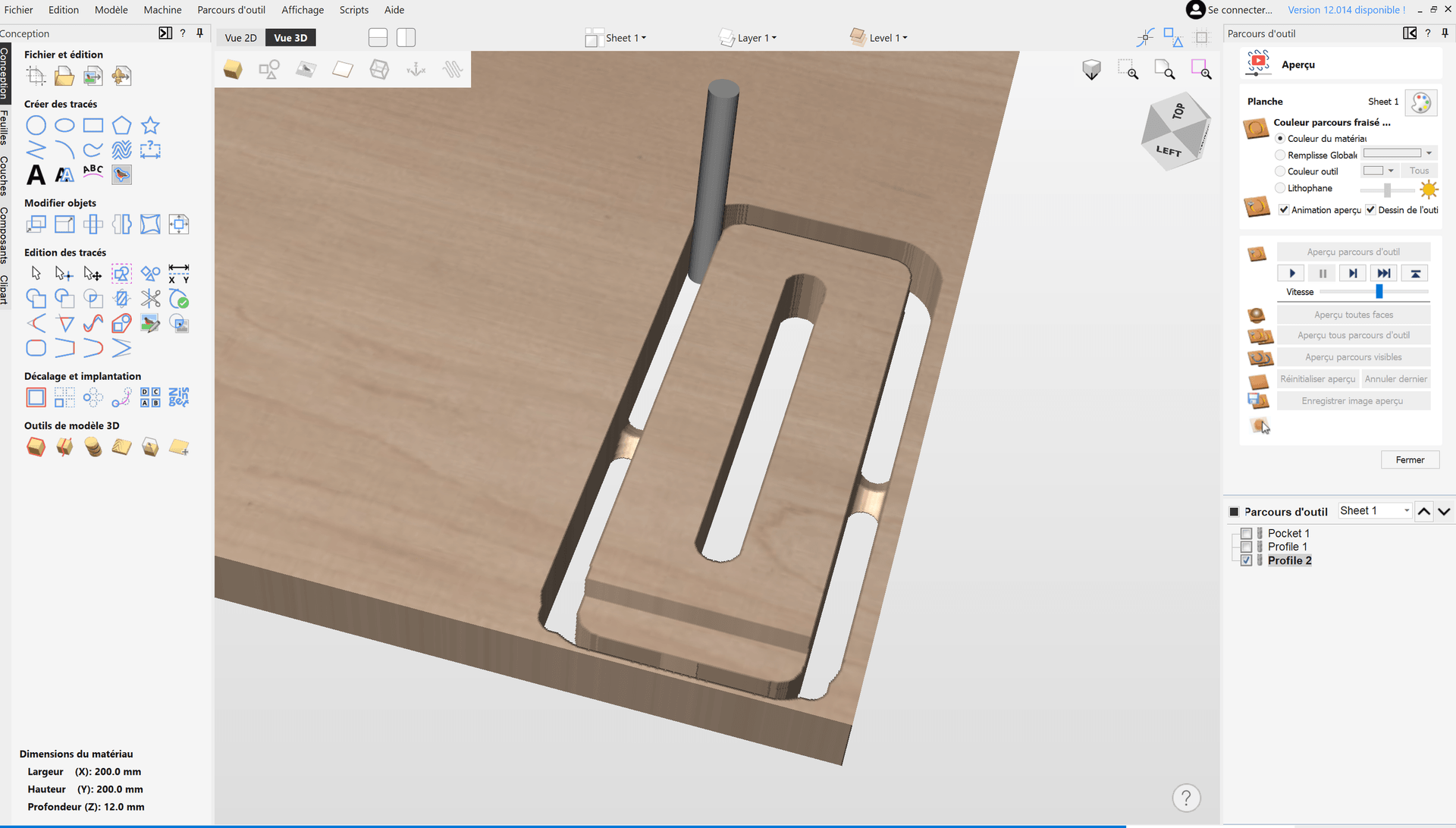
- Click Calculate to generate the toolpath. The software automatically switches to 3D View and the right-hand panel switches to Preview mode.

The toolpaths are represented by different coloured lines:
Blue for the cutting toolpath.
Green for approaching the stock.
Red for movements outside the stock.
- Click on the Play button to simulate the machining in 3D.
- If the result of the simulation is OK, close the Preview menu to return automatically to the main Toolpath menu.
Internal contour machining
- Switch back to View 2D and select the slot.

- In the Toolpath Operation panel, click on the Profile Toolpath operation.

The 2d Profile Toolpath panel then opens.

Depths:
- Start depth at 0 mm
- Cut depth at 12 mm. Corresponds to the thickness of the stock we want to cut through.
Tool:
Select the 6 mm cutter configured in the previous pocket operation.
Passes:
Check that the software suggests 4 passes: 12 mm / 3 mm = 4 passes. Modify if necessary by clicking on the Passes settings button. ..
Machining:
Allows you to choose the type of closed contour machining:
Outside/right: the tool will cut outside the path.
Inside/left: the tool will cut inside the path.
On: the tool will cut at the centre of the path.
- Select Inside/Left here.
Leave the Add tenons to path box unchecked.
- Check Add ramp and set the Angle to 30 degrees.
- Click on Calculate, the software switches back to 3D View, simulate the toolpath:

- Click Close to return to the main Toolpath menu.
Machining the outer contour
- Return to View 2D and select the outer contour of the clamp:

- In the Toolpath Operation panel, click on the Profile Toolpath operation again.

Depths:
- Start depth at 0 mm
- Cut depth at 12 mm. Corresponds to the thickness of the blank we want to cut through.
Tool:
Select the 6 mm cutter configured in the previous pocket operation.
Passes:
Check that the software suggests 4 passes: 12 mm / 3 mm = 4 passes. Modify if necessary by clicking on the Passes settings button. ..
Machining:
- This time select Outside/Right.
- Check the Add tabs to toolpath box.
We will explain this part later in the text.
- Check Add ramp and set Angle to 30 degrees.
Add tabs to the toolpath
Tabs are used to keep the workpiece firmly attached to the stock to avoid any incidents associated with the workpiece coming off the stock, such as projections, broken bits or fire starts. It is therefore important to use them. In practice, these are unmachined parts that can be fully configured.

Length: 8 mm
Thickness: 4.0 mm
As with the depth of passes, we use conservative values: the 4 mm thickness of the tabs ensures that they do not disappear if the thickness of the stock is measured incorrectly or if the stock is not perfectly flat.
- Check the 3D Tabs box to generate tenons with a triangular profile that is easier to remove.
- Click on Edit to choose their position.
If you are a beginner, 4 tenons is recommended for a secure hold on the part.
- So enter a constant number: 4, then click on Add tabs, and you will see them appear on each side, represented by a yellow square.

- Close the tabs window to return to editing the profile machining.
- Click on Calculate, the software switches back to 3D View, simulate the toolpath:

- Click Close to return to the Toolpaths main menu.
All toolpaths are now ready!
Exporting G-Code
The 3 operations have been generated and can now be exported to G-code.
Before exporting, check that the order of the operations is correct:

You can rearrange the operations by dragging them with the mouse.
You can edit operations by double-clicking on them as required.
Before saving your G-code, it's a good idea to run a simulation of all the operations at reduced speed (with a preview of all the toolpaths and the cursor under the play button that lets you slow down the speed).
This allows you to spot any parasitic movements or programming errors, etc.
If everything seems coherent during the simulation, you can export your G-code to send it to the machine.
To export, click on the Save toolpaths icon:

The right-hand panel displays the export options:

- Select Visible toolpaths to one file and tick the 3 operations in the Toolpaths section.
- The operations then appear in the Toolpaths to be save section.
- Check in Machine that your machine and its post-processor are correctly selected.
- Click Save Toolpath(s).
- A Save As window appears, choose the output folder and give the file a name.
- The file has been exported in G-CODE and is ready for machining. You can save it on your USB key.
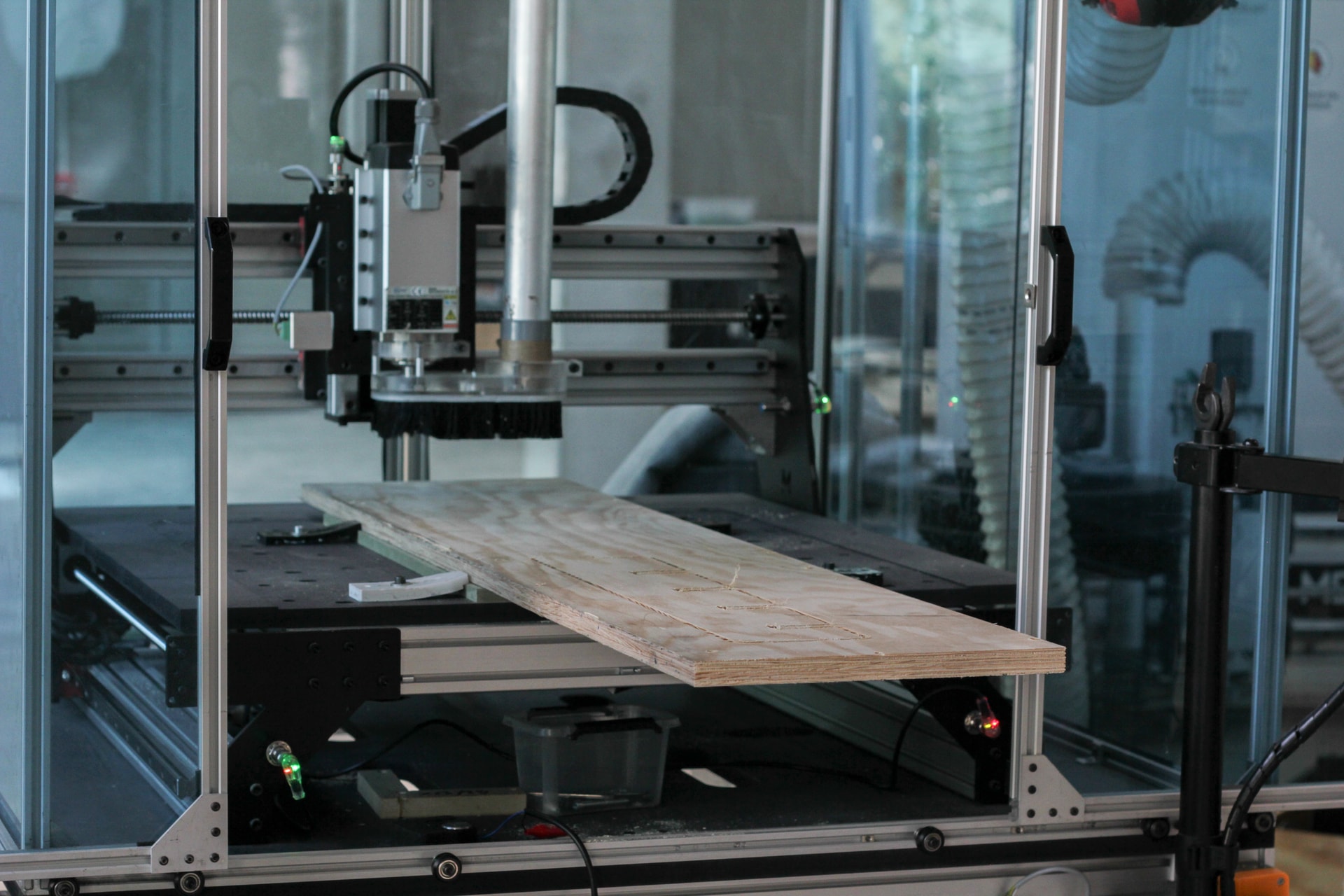
Milling your part
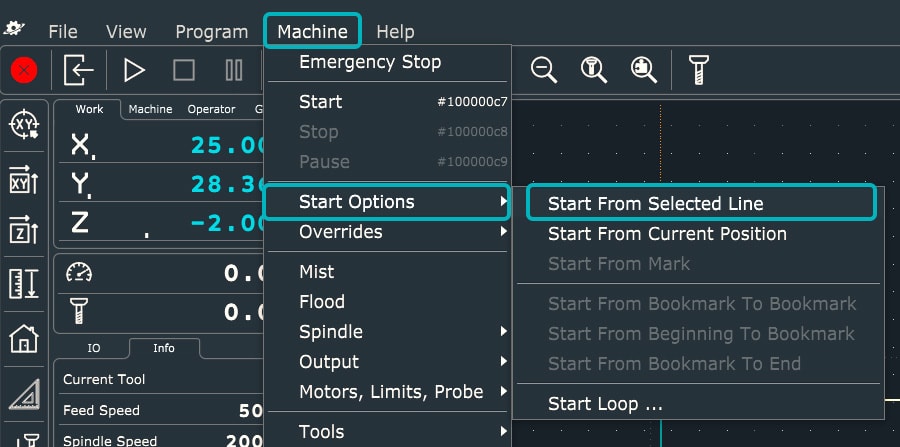
We have another tutorial on how to use your Mekanika machine for the first time when you generate your G-Code, and it is adapted to any software.
Congrats, you are now able to cut your own parts using VCarve!