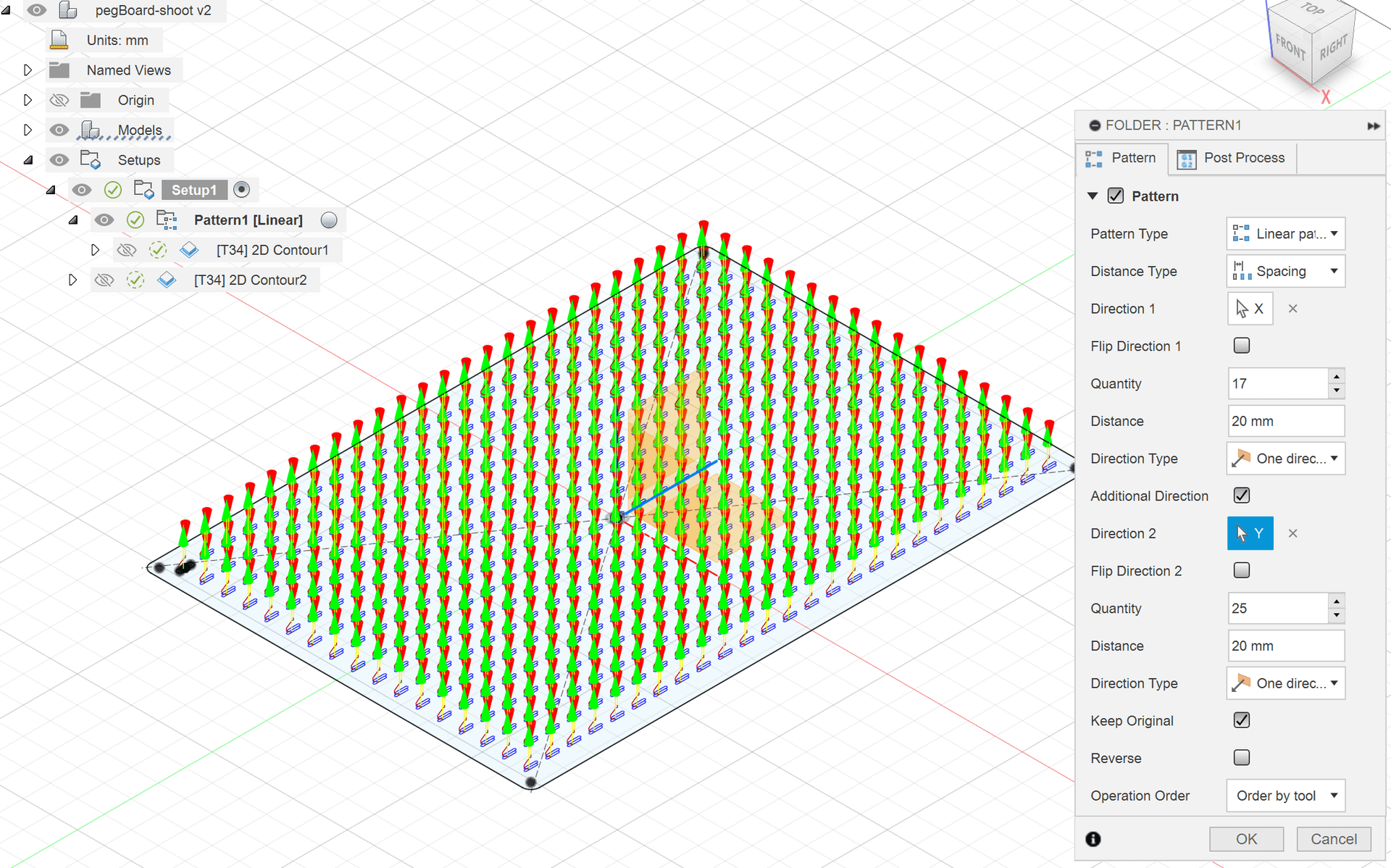
Using Toolpath Patterns in Fusion
Create and machine a parametric pegboard using a toolpath pattern. You will learn how to prepare the design and how to use the Pattern operation in the Manufacture workspace.

Xavier Klein
CNC Educator
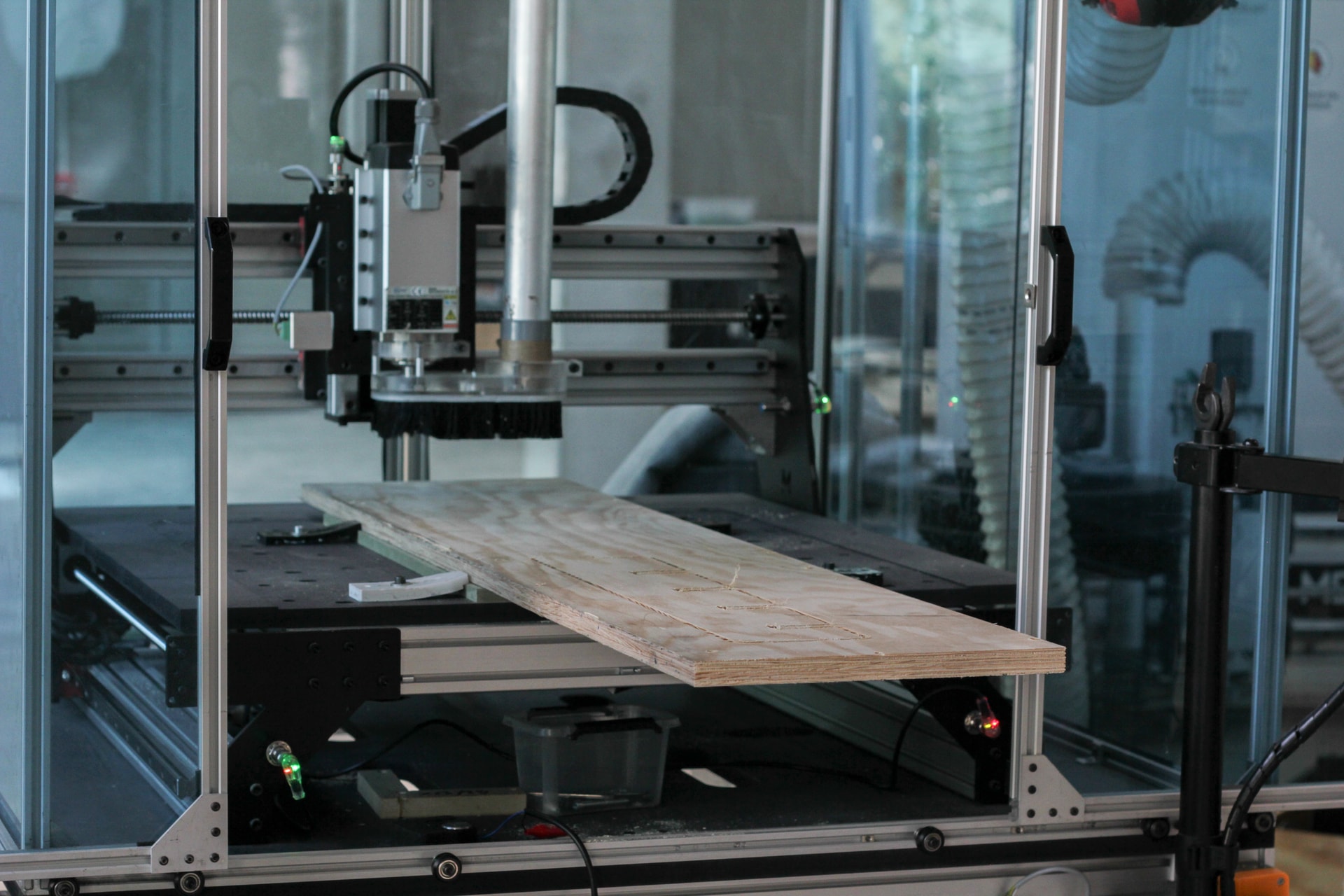
For reasons of space, budget or simply usage, you opted for a modest-sized machine. Yet you sometimes want to machine parts larger than its working area. Fortunately, by preparing your file properly, you can get around this physical limitation. This technique is called tiling.
We present it here in Autodesk Fusion, but the principle applies to any other software. And as always with Fusion, the procedure shown is probably not the only possible one.
Note: Vectric VCarve has a dedicated tiling function in the Toolpaths panel, but you will have to draw the positioning holes yourself:
We assume that you are working on a Mekanika Pro S, which has a working area of 630 × 630 mm, and that you already know how to prepare simple machining operations in Fusion (see Module 1).
Here we will use the upright of a fictitious shelf, 1100 mm long and 100 mm wide. You can use our example by downloading the file here or directly one of your own designs.
You will need stock large enough for your machining and, optionally, a “sacrificial spoilerboard” if you do not want to machine directly into your spoilerboard.

The principle: draw and mill 2 holes through the stock and into the sacrificial spoilerboard, in order to insert 2 dowels.

Once these holes are made, you can mill the part with the usual operations. The trick is to limit these operations to the working area. With each machining, two new holes are milled in the stock: they will be used to position it for the next operation.

Then we move the stock and place it on the dowels using the 2 holes:


We repeat this operation until the whole part has been machined.

So we need to draw the stock, the dowel holes and the rectangles that delimit the toolpaths.
Create a new sketch on the XY plane.
Draw a 1245 × 285 mm rectangle around the object to represent the stock. You can adjust these values if you already have suitable stock.

It must surround the object with some margin.
At the bottom of this rectangle, draw 2 circles: they will be used to machine the holes for the positioning dowels. The dowels used here are 7 mm in diameter, so we will make 7.2 mm holes.

Select the Create > Sketch Dimension tool, click the left circle, then the horizontal line. Place the dimension and enter 10 mm to set the distance between them. Do the same with the left vertical line, then with the second circle on the right:
Select Create > Rectangle > 2-Point Rectangle. Click the bottom left corner of the large rectangle and enter the dimensions: 550 mm in height and 200 mm in width. This rectangle delimits the first machining: it is 550 mm high, slightly less than the 630 mm limit of the Mekanika Pro S, to keep some margin: 
Draw a new rectangle with the same dimensions. Place the first point below the top of the first rectangle so that the two rectangles overlap. This overlap also makes the machining operations overlap, which ensures that they join up:

Set this overlap to 10 mm with Create > Sketch Dimension: click the top side of the first containment rectangle, then the bottom side of the second.

Repeat these two operations up to the end of the stock:

Now draw the positioning circles for each zone. Draw two circles above the overlap of the two rectangles and use Create > Sketch Dimension to place them 10 mm from each side. For the vertical offset, use the bottom line of the overlap as the reference:

Repeat the operation for the 2 other zones.

You can finish the sketch.
Hide the Body representing the part and extrude (Create > Extrude) the stock to the same thickness (here 18 mm). Select everything except the holes.

Show the Sketch of this extrusion again, as well as the Body of the part to be cut.

You can move to the Manufacture workspace.
As always, start with Setup > New Setup. Set the work coordinate origin on the bottom left corner of the stock:

In the Stock tab, enter 0 mm for each Offset:

Click OK to confirm the Setup. If this message appears, click Yes.

Select 2D > Bore. We will not go into detail here: these are simply the settings specific to this operation:


Click OK to confirm the operation.
Program a second bore, this time for the next two holes. These must not go into the sacrificial spoilerboard.

Use the Browser to hide the stock.

Select 2D > 2D Contour:


Once the configuration is complete, notice how the machining stops at the containment rectangle. 
Now repeat the last two operations (the second bore and the 2D Contour), moving the work coordinates each time.
Create a new Setup. This time, in the Work Coordinate System (WCS) section, select Selected Point in the Origin menu:

Then click the left corner of the second containment rectangle.

Confirm the Setup, then configure the next bores and the 2D Contour for the second zone:


Continue in the same way for each zone, moving the work coordinates each time.

Export each Setup separately, naming it clearly, so you do not get lost once at the machine:

Place the sacrificial spoilerboard and measure the tool length with the Z probe placed on it.

Then set the work coordinate origin, without getting too close to the Y-axis limit: some toolpaths may extend beyond it, and if they exceed the physical limits of the machine, the machining will stop.

Then position the stock: we start with its lower part, with the rest sticking out at the back of the machine.


We use screws in this example: make sure not to place them in the path of the end mill!Then start the first machining: begin with the deep bores, then go straight on to the bore + 2D Contour pair.


Unscrew the stock from the sacrificial spoilerboard and look at the two machined holes:


Insert the dowels into these holes:


Put the stock back on the sacrificial spoilerboard, using the second pair of holes as a guide:

Secure the stock with the screws:


Above all, do not change the work coordinates!
Start the second machining. If all goes well, it cuts the shape with no offset.

This is when it matters to have placed many solid tabs: the first part of the piece is outside the working area and, without them, it can start to vibrate strongly.

Once this machining is finished, move the stock forward and place it on the 3rd pair of positioning holes, then start the third operation. Repeat these steps as many times as needed!

There you go! If all goes well, the part is machined correctly, with no offset. All that remains is to cut the tabs with a wood chisel to free it.


You now know how to machine an object larger than your machine! We moved the part along the Y axis, but the same method works along the X axis.
This tutorial is largely based on the excellent videos by Jonathan Katz-Moses and Aribabox. We mainly tried to simplify and streamline some of the techniques: thanks to them!
How To Cut Parts Bigger than your CNC Bed with Fusion 360
Making Large Parts on a Hobby-level CNC Router - Tiling Tutorial with Fusion 360
Mekanika is a Belgian company based in Brussels whose ambition is to make local production more accessible thanks to a 100% open-source approach.
We design and produce high quality machines for CNC milling and screen printing, which have been recognized for their reliability and ease of use. Our tools are delivered as kits and fully documented, allowing to easily adapt them to specific needs.
Visit our shop to find out more, or check out our online resources and tutorials to continue learning.
Create and machine a parametric pegboard using a toolpath pattern. You will learn how to prepare the design and how to use the Pattern operation in the Manufacture workspace.
Xavier Klein
CNC Educator
Learn the basics of Autodesk Fusion: the interface, the design of a parametric clamp and the preparation of its CNC machining.
Xavier Klein
CNC Educator
Learn how to design a parametric stool assembled with mortise and tenon and cross lap joints, then prepare its machining in Autodesk Fusion.
Xavier Klein
CNC Educator